Table Reference Service
The Table Reference Service (TRS) stores selections for table-driven fields and Uniform Data Codes (UDC). Some table fields are system-defined. Others are user-defined.
|
Click the thumbnail to see an example |
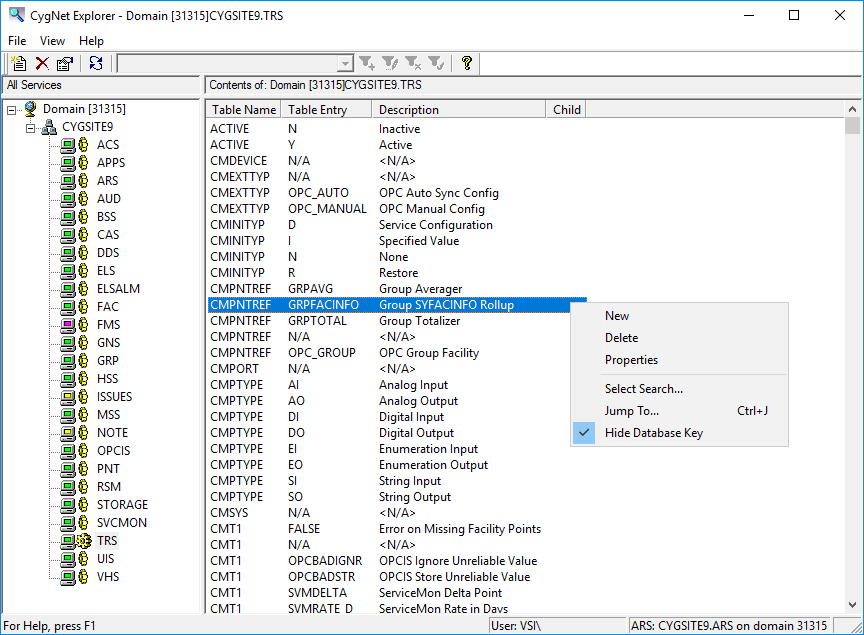
Using the TRS Editor
Table and table entry configuration is made in the TRS Editor, or the Properties for Entry <entry> in Table <table> dialog box.
- Right-click in the service pane and select New to configure a new table record.
- Right-click a table entry and select Properties (or double-click) to open a table record. By default the TRS Editor opens in View (or read-only) mode. Use the Previous and Next buttons to scroll through the configured entries in the TRS in View mode.
- Click Edit to modify a TRS entry. The Previous and Next buttons are disabled in Edit mode.
- If changes are made to a table entry and the TRS Editor is canceled, a prompt dialog will display allowing the user to Save, Discard, or Cancel and return to the editor.
- Click Audit History to view an audit history trail for the table entry. See Auditing for more information about how auditing works in CygNet Software.
Context Menu Options
The following table lists and describes the context menu options that display when you right-click in the TRS pane.
| Option | Description | Shortcut |
|---|---|---|
| New | Click this option to create a new table entry. | |
| Delete | Highlight an existing record and click this option to permanently delete a table record. | |
| Properties | Highlight an existing record and click this option to view its properties in read mode. You can also just double-click an existing record. |
|
| Select Search | See CygNet Explorer – Searching for a Record. | |
| Jump To | See CygNet Explorer – Searching for a Record. | Ctrl+J |
| Hide Database Key |
Click to Hide/Display the column in the service pane containing Data key values for each record. |
More:
 TRS Configuration File Keywords


